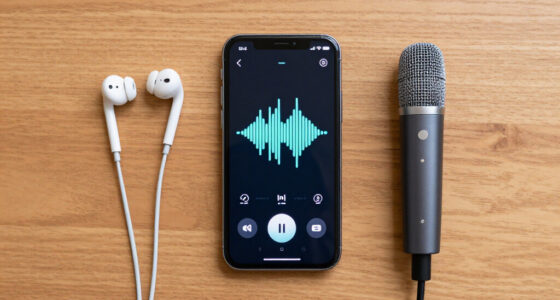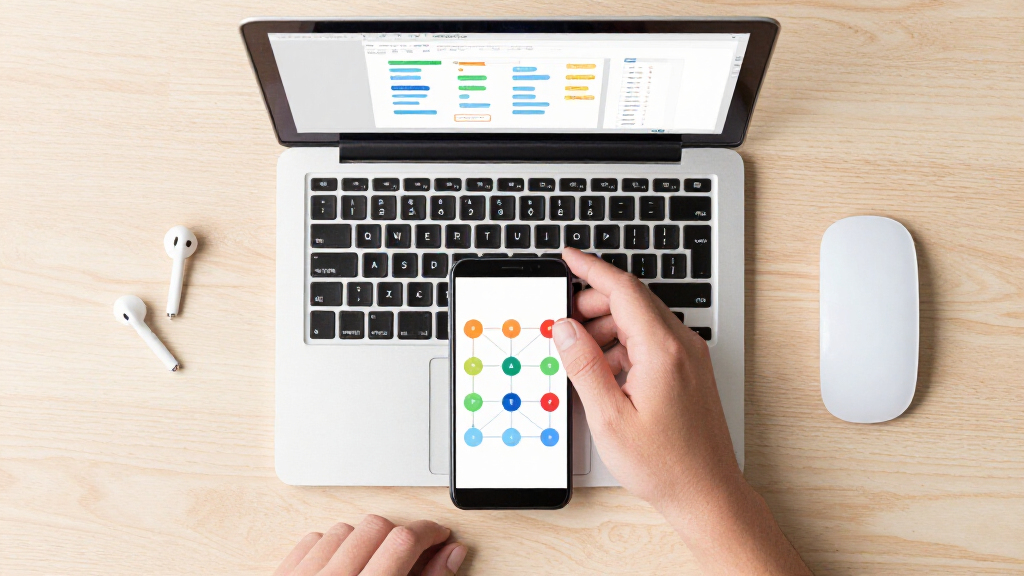

This checklist is for people building an AI workflow setup for tasks such as recording, video calls, file handling, and network access. It covers a mix of dedicated gear and practical setup choices, with an everyday workflow in mind.

Get business pricing on tech for your team
- Business-only prices and quantity discounts
- Tax-exempt purchasing
- Multiple users, one account, clear invoices
Each section focuses on one slot: what role it can play, what to check before buying, and where the named pick may fit. The mini PC section offers advice only, while the other sections name the selected products.
Use the checklist to match each item to your actual devices, software, workspace, and connection needs. Check compatibility first, then prioritize the parts that address the biggest friction in your workflow.
AI mini PC
An AI mini PC can be a compact home for workflow tools, local services, and everyday computing, but the right choice depends on what you plan to run. Start with the actual workload: browser-based AI tools, light automation, local models, and media tasks can place very different demands on a system. Avoid choosing by a broad “AI-ready” label alone; identify required operating systems, software support, memory, storage, and connections before comparing machines. Workload fit is the useful starting point.Common mistakes include underestimating memory needs, assuming every tool runs locally, and overlooking how the computer will connect to displays, storage, microphones, and a network. Check the ports and wireless options against your existing equipment, and confirm that the device can be placed where it has room for airflow and accessible connections. If you expect to expand storage or connect several peripherals, verify how those additions will work together. Compatibility checks prevent a small computer from becoming a frustrating bottleneck. Pick a system based on the applications you intend to use and the setup you can support, rather than a generic promise of AI capability.
What to look for:
- Confirm support for the operating system and workflow software you plan to use.
- Match memory and storage to your intended apps and files.
- Check display, USB, and network connections against your peripherals.
- Verify the placement allows airflow and access to ports.
- Consider how future storage or peripheral additions will connect.
USB microphone
A USB microphone can simplify voice capture for meetings, narration, and other workflow recordings by connecting directly to a computer. The named pick is the RØDE NT-USB+ Professional USB Condenser Microphone. Before choosing it, consider where you will record, how much desk space you have, and whether the computer or other device you plan to use supports the required connection. A good fit begins with your room and routine, not just the microphone itself.Common buying mistakes include assuming a microphone will remove room noise, forgetting to check physical placement, or overlooking the cables and accessories needed for a comfortable setup. Think through the distance between your mouth and the microphone, whether the desk arrangement leaves room for it, and whether you need a stand or other mounting solution. Confirm that your recording or meeting software can select the microphone as an input. Connection and placement shape how convenient it is to use day to day. The NT-USB+ is worth considering when a direct USB microphone suits your setup; make sure its connection and positioning work with the device you intend to use.
What to look for:
- Check that your computer or device supports the microphone’s USB connection.
- Confirm your meeting or recording software can select it as an input.
- Plan a comfortable position and distance for speaking.
- Check whether your desk has room for the microphone and any stand.
- Consider your room and recording habits before expecting a microphone to solve sound issues.
RØDE NT-USB+ Professional USB Condenser Microphone

The RØDE NT-USB+ is a professional-grade USB condenser microphone featuring a studio-quality capsule, ultra-low-noise circuitry, and versatile controls. It offers high-resolution audio, zero-latency monitoring, and includes a pop filter and desktop stand, making it ideal for podcasting, music recording, and streaming.
Pros:
- High-quality studio-grade sound with low noise
- Versatile controls and audio processing features
- Includes pop filter and desktop stand for convenience
- Compatible with computers, tablets, and smartphones
Cons:
- Requires USB-C port, may need adapters for some devices
- Premium features may be complex for beginners
Best for: People who want a USB microphone for calls or recordings
Not ideal for: Setups without a compatible USB connection or suitable placement
Bottom line: Choose the NT-USB+ if its connection and desk placement fit your recording routine.
Webcam
A webcam can make video calls, demonstrations, and content capture easier to fit into an AI workflow. The listed choice is the Razer Kiyo V2 Pro Webcam for Streaming and Content Creation, 4K 60 FPS. Before purchasing, check how it will attach to your monitor or other mounting point, whether its cable reaches your computer, and whether your video apps support the camera as an input. The camera needs to fit both your workspace and the software you use.A common mistake is focusing on resolution claims without considering lighting, framing, and the screen arrangement. Check where the camera will sit relative to your display and your usual position, and make sure the mount suits the monitor or surface you use. Confirm that your computer has a suitable port and that your chosen apps expose the settings you need. If you use a hub, include its available connections in the compatibility check. Framing and connection matter for a smooth setup. The Kiyo V2 Pro may suit a streaming or content-creation setup, but confirm its fit with your device, monitor, and software before relying on it as your everyday camera.
What to look for:
- Verify the computer and video apps support the webcam as an input.
- Check cable reach and the computer’s available port.
- Confirm the mount fits your monitor or chosen surface.
- Plan camera placement for comfortable framing.
- Check how the webcam will connect if your setup uses a hub.
Razer Kiyo V2 Pro Webcam for Streaming and Content Creation, 4K 60 FPS

The Razer Kiyo V2 Pro delivers ultra‑sharp 4K video at 60 FPS with an 8.3MP Sony STARVIS 2 sensor, ideal for streamers, creators, and professional video calls. AI‑powered auto‑framing keeps you centered while low‑light enhancement and HDR provide clear, vibrant images in challenging lighting.
Pros:
- Ultra‑sharp 4K video at 60 FPS with reduced motion blur.
- AI‑powered auto‑framing and face tracking keep you centered during movement.
- One‑click low‑light enhancement and HDR deliver clear, vibrant images in dim or mixed lighting.
- Extensive manual controls via Razer Synapse for DSLR‑level customization.
Cons:
- No built‑in microphone; external audio is required.
- Relatively large footprint may not fit all monitor setups easily.
- Not water resistant, limiting use in humid environments.
Best for: People adding a webcam to streaming or content creation setups
Not ideal for: Workspaces without a compatible port or practical mounting spot
Bottom line: Confirm the camera’s mount, cable reach, and app support before choosing it.
Portable SSD
An external SSD can provide a portable place for workflow files, project material, and backups. The named pick is the SanDisk 4TB Extreme PRO Portable SSD. Before buying, check that the capacity suits the files you expect to keep and that your computer supports the drive’s connection. Also consider whether you need to move files between multiple devices and whether each one can connect to the drive without an adapter.Common mistakes include treating an external drive as a complete backup plan, overlooking connection differences between devices, and storing important files in only one place. Check the ports on your computer or hub and confirm that any adapters you need are compatible. Think through how you will organize files and keep a separate copy of anything important. If the SSD will travel with you, consider how it will be stored and connected at each workstation. Capacity and connection should match your actual workflow. The Extreme PRO Portable SSD is a candidate for portable storage; verify its interface and your device compatibility before deciding how to use it.
What to look for:
- Match the stated capacity to the files you plan to store.
- Check that each computer supports the drive’s connection.
- Confirm any required adapter works with your devices.
- Plan a separate copy of important files.
- Consider how you will store and connect the drive when traveling.
SanDisk 4TB Extreme PRO Portable SSD

This portable SSD offers up to 2,000 MB/s read and write speeds in a rugged design with a forged aluminum chassis and silicone shell. It has IP65 water and dust resistance, up to 3-meter drop protection, a carabiner loop, and a 5-year limited warranty.
Pros:
- Fast read and write speeds
- Rugged design with water and dust resistance
- Up to 3-meter drop protection
- Compact and lightweight, with a carabiner loop
Cons:
- Maximum speeds depend on compatible hardware and conditions
Best for: People who need portable space for workflow files
Not ideal for: Users whose devices lack a compatible connection
Bottom line: Check capacity and device connections, and keep another copy of important files.
USB-C hub
The supplied pick for this slot is the Dell 34 Monitor S3425DW, described as a WQHD VA monitor with 120Hz, FreeSync Premium, and Eye Comfort. That product name identifies a monitor rather than a USB-C hub, so first decide whether you need a display or a hub for your setup. A hub is generally chosen to connect peripherals through a compatible host connection; a monitor is selected for screen size, display connections, and workspace fit. Confirm the product category before purchasing.If a USB-C hub is what you need, check the laptop’s USB-C capabilities, the number and type of peripherals to connect, and whether the hub supplies the connections your devices require. Do not assume every USB-C port supports the same functions, or that a display’s ports provide hub functionality. If the Dell monitor is intentional, check that its footprint fits your desk and that its display inputs match your computer. Review how you will connect the monitor and peripherals together, including any separate hub required. Port requirements should guide the choice. The named item may belong in a monitor slot, but it should not be treated as a USB-C hub without confirming its functions.
What to look for:
- Confirm whether you need a monitor or a USB-C hub.
- For a hub, check the host computer’s USB-C capabilities.
- List the port types and number needed for your peripherals.
- For the Dell monitor, check desk space and display input compatibility.
- Confirm whether a separate hub is needed for peripheral connections.
Dell 34 Monitor S3425DW, WQHD VA, 120Hz, FreeSync Premium, Eye Comfort
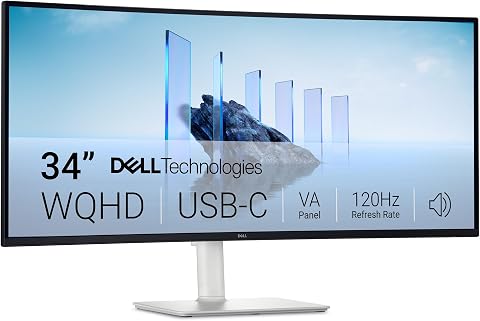
The Dell S3425DW is a 34-inch curved monitor featuring a WQHD resolution of 3440×1440, a 120Hz refresh rate, and AMD FreeSync Premium for smooth visuals. It offers vivid colors with 99% sRGB and 95% DCI-P3 coverage, along with eye comfort technology and easy USB-C connectivity for a seamless experience.
Pros:
- Vivid and true-to-life colors with high color coverage
- Smooth visuals with 120Hz refresh rate and FreeSync Premium
- Eye comfort features reduce blue light emissions
- Convenient USB-C connectivity with power delivery
Cons:
- Large size may not fit smaller desks
- Limited stand adjustability details
- No built-in speakers mentioned
Best for: People who intend to add the named Dell monitor
Not ideal for: Buyers specifically seeking a USB-C hub
Bottom line: The listed Dell is a monitor by name, so verify the intended slot before buying.
Wi-Fi 6 router
A router can be central to a workflow that depends on reliable access to online tools and connected devices. The pick provided here is the TP-Link Tri-Band WiFi 7 Router (Archer BE600), while the section calls for a Wi-Fi 6 router. Because the named model is described as Wi-Fi 7, check that the intended wireless standard and your other network equipment align with your needs. Do not choose by the section label alone; confirm the product’s exact specifications and compatibility.Common mistakes include assuming a new router will fix every connectivity issue, overlooking the internet service connection, and ignoring where the router must be placed. Check what connection your modem or service provides, which devices need wireless access, and whether the router can be positioned where it can serve them. If you have existing network equipment, confirm how the new router will work with it and what setup changes are needed. Network compatibility should be clear before replacing equipment. The Archer BE600 may be relevant if its actual specifications suit your devices and service, but the Wi-Fi 6 slot and Wi-Fi 7 product description need to be reconciled before purchase.
What to look for:
- Verify the router’s wireless standard from its product specifications.
- Check compatibility with your modem or internet service connection.
- List devices that need to connect and confirm their support.
- Plan placement for the router in relation to connected devices.
- Confirm how the router will work with existing network equipment.
TP-Link Tri-Band WiFi 7 Router (Archer BE600)
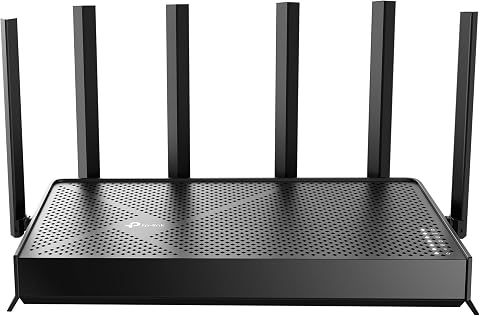
The TP-Link Archer BE600 is a WiFi 7 router offering expansive coverage and high-speed connectivity suitable for 4K/8K streaming, gaming, and smart home devices. It features multiple gigabit ports, advanced security, and easy management via the Tether app, making it ideal for large homes and high-demand networks.
Pros:
- High-speed tri-band WiFi 7 with up to 9.7 Gbps total bandwidth
- Excellent coverage suitable for large homes
- Multiple gigabit ports for versatile wired connections
- Advanced security features and easy management via app
Cons:
- Complex setup for non-technical users
- Premium price may be high for some budgets
- Large size may require ample space for placement
Best for: People considering the Archer BE600 for a network setup
Not ideal for: Buyers who require a specifically confirmed Wi-Fi 6 model
Bottom line: The pick is labeled Wi-Fi 7, so verify the requested standard and device compatibility.
Build in a practical order: first address the computer and network needs that determine whether your workflow can run, then add the microphone, webcam, and storage according to the tasks you do most. Resolve the monitor versus hub question before choosing that slot, and check each device’s connections against your computer.
You do not need every item at once. Start with the setup issue that slows you down most, confirm compatibility, and add equipment as your workflow becomes clearer. A few well-matched tools can make a setup easier to use and maintain.
Halloween Picks
halloween
As an affiliate, we earn on qualifying purchases.